




Birla Institute of Management Technology, Greater Noida
AACSB Accredited | Highest CTC: 22 LPA


The CAT 2026 exam will be conducted on November 29, 2026, in computer-based test (CBT) mode. Apart from preparing for VARC, DILR and Quantitative Aptitude, candidates must understand how to use the CAT 2026 exam interface, including the question palette, Save & Next, Mark for Review, TITA answer box and on-screen calculator. Knowing how these features work can help prevent response-saving errors and make question navigation easier during the examination.
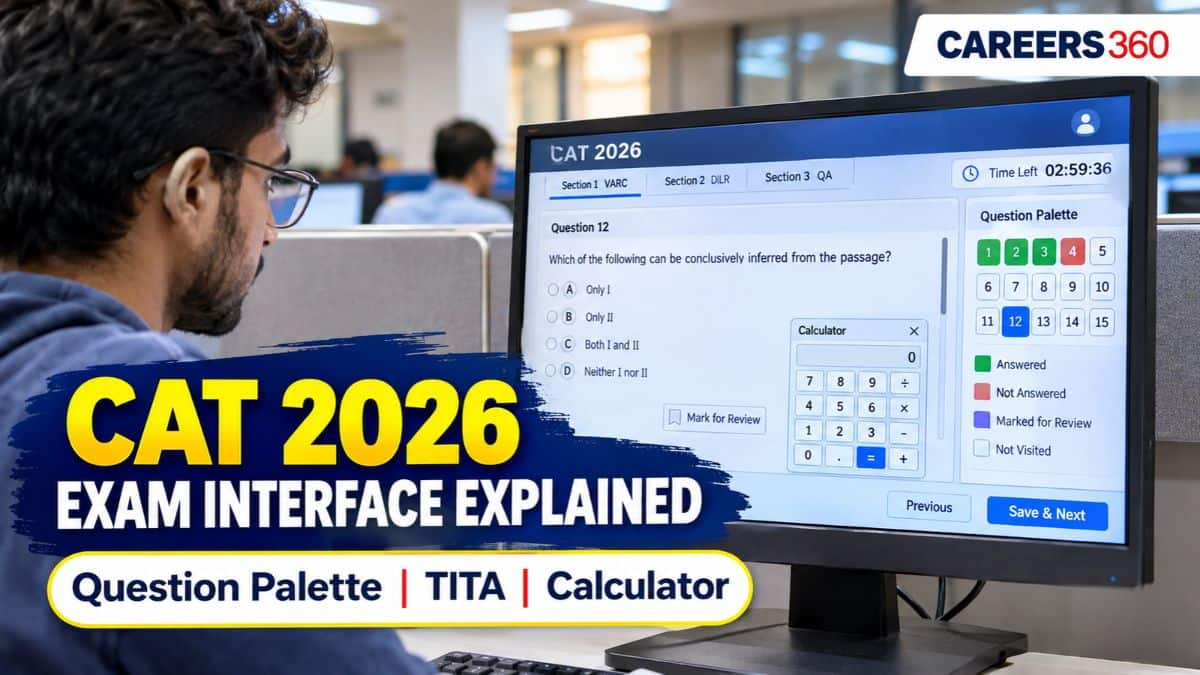
The CAT 2026 exam screen displays different question status indicators, navigation buttons and a sectional countdown timer. But what do the different question palette colours mean? Does Mark for Review save an answer? How should candidates enter TITA responses? This article explains the CAT 2026 computer-based test interface, its important features and common navigation mistakes, with practical examples to help candidates prepare for exam day.
The exam screen contains several controls. Each has a specific purpose, from displaying the remaining time to saving an answer.
Interface feature | What it does |
Section timer | Shows the remaining time for the active section |
Question palette | Displays the status of questions in the section |
Question area | Shows the question, passage, data set or answer options |
Save & Next | Saves the response and opens the next question |
Mark for Review & Next | Flags the question and moves ahead |
Clear Response | Removes the selected or entered answer |
On-screen calculator | Helps with numerical calculations |
TITA answer box | Allows candidates to enter a non-MCQ response |
The exact screen layout and button placement should be checked in the official CAT 2026 mock test. The controls are easier to understand when candidates practise using them rather than simply reading their names.
Get the actual CAT previous year question papers here
The question palette is usually displayed on the right side of the exam screen. It shows the status of every question in the active section. Candidates can click a question number to open it directly.
The palette uses five status indicators to show which questions have been visited, answered or flagged.
Question status | Displayed as | Meaning |
Not Visited |
| The question has not been opened |
Not Answered |
| The question has been opened, but no response has been saved |
Answered |
| A response has been saved |
Marked for Review |
| The question has been flagged for another look, but no answer is saved |
Answered and Marked for Review |
| A response is saved, and the question is flagged for checking |
The palette helps candidates spot unfinished questions quickly. An answered question marked for review is still considered for evaluation, so the review flag does not cancel a saved response.
Below is what the question palette looks like:
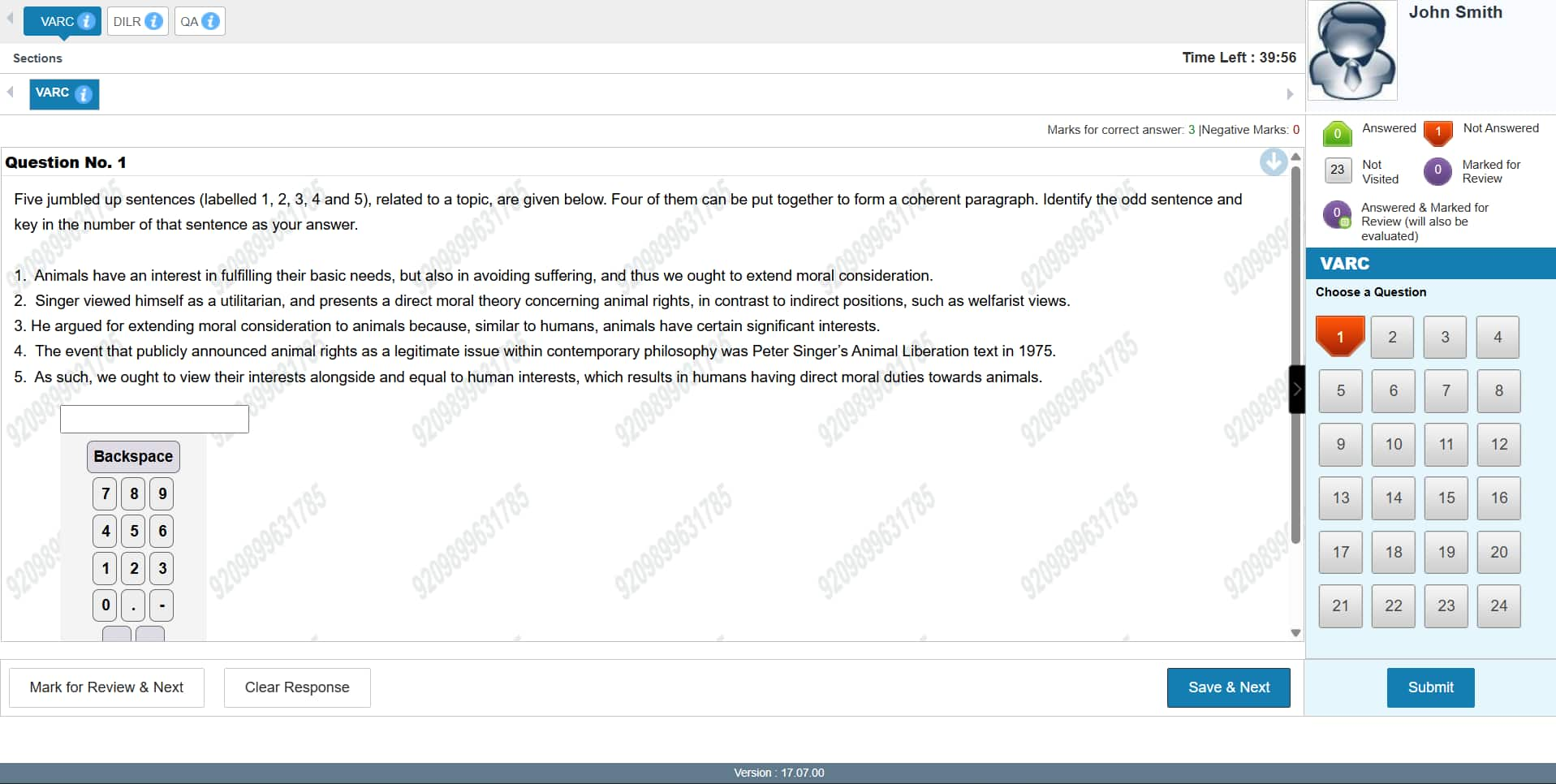
Imagine that a candidate is attempting the DILR section:
Question 1 is solved and saved. Its status shows Answered.
Question 2 looks lengthy. It is marked for review without an answer.
Question 3 has not been opened yet.
Question 4 is answered but needs another check. It is saved and marked for review.
Instead of scrolling through the entire section, the candidate can use the palette to return to Question 2 or Question 4.
One thing to remember: Clicking a question number takes the candidate to that question. It does not automatically save the response to the question currently open. Use the appropriate save button before moving away.
Mark for Review works like a reminder. It flags a question that may need another attempt before the section ends.
For example, a DILR set may involve several calculations. If the approach is not clear immediately, candidates can mark the question and move to another one.

Use the review option when:
A question needs more calculation time.
Two options appear equally possible.
A TITA answer needs verification.
A DILR set looks solvable but requires another attempt.
A response has been entered but needs checking.
Avoid marking every difficult question. A long list of review flags can become difficult to manage in the final minutes.
This depends on the option selected. The following distinction is important when leaving a question.
Action | What happens |
Mark for Review & Next without an answer | The question is flagged but remains unanswered |
Mark for Review & Next after selecting an answer | The selected response is saved and flagged |
Save & Next | The response is saved without a review flag |
Clear Response | The selected or entered response is removed |
An answered question marked for review remains eligible for evaluation. Candidates should still check the palette to confirm the response status.
Download the Free CAT 2026 VARC, DILR and QA Revision Sheets
TITA stands for Type In The Answer. These questions do not provide four options. Candidates must enter the answer in the response box using the on-screen virtual keypad.
TITA questions are commonly associated with Quantitative Aptitude and DILR. The answer may be a numerical value or another format specified in the question.
Read the question and solve it.
Locate the answer field displayed on the screen.
Use the on-screen virtual keypad to enter the required value.
Check the entered digits, decimal point or sign.
Click Save & Next to record the response.
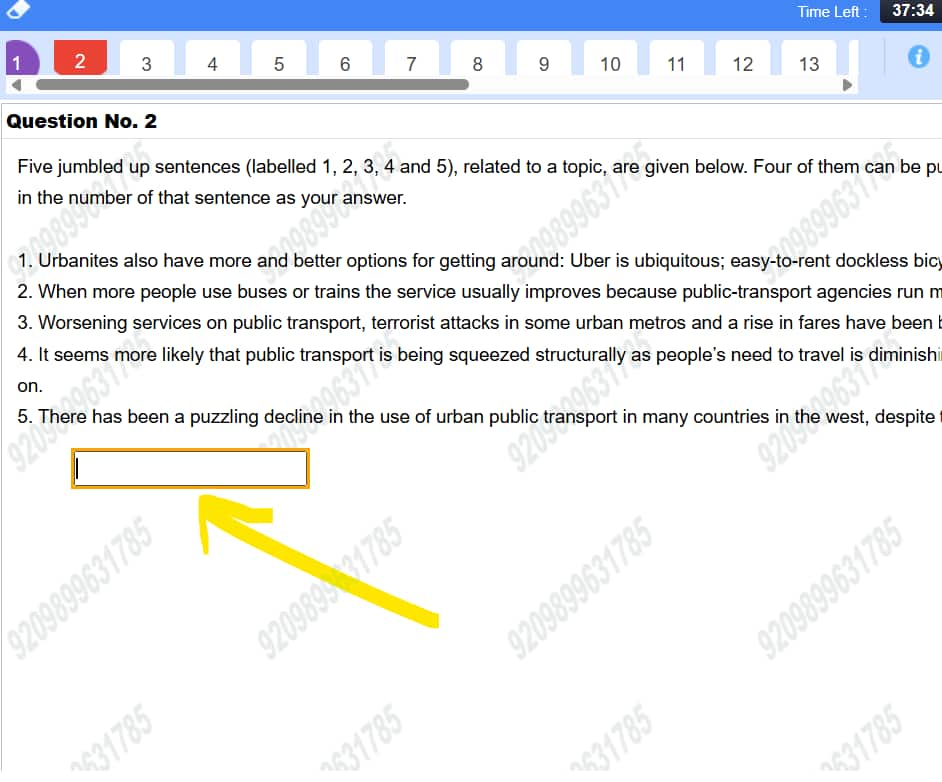
The input format may vary by question. Follow the instructions shown on the screen. Do not add units or extra symbols unless required.
Under the commonly followed CAT marking scheme, incorrect TITA answers do not attract negative marks. However, candidates should check the official CAT 2026 instructions for the final marking rules.
The usual marking structure for MCQ and TITA questions is shown below.
Question type | Correct response | Incorrect response |
MCQ | +3 | -1 |
TITA / Non-MCQ | +3 | 0 |
A TITA question may not have negative marking, but random guessing is not a reliable strategy. Enter a response only after checking the calculation and the required format.
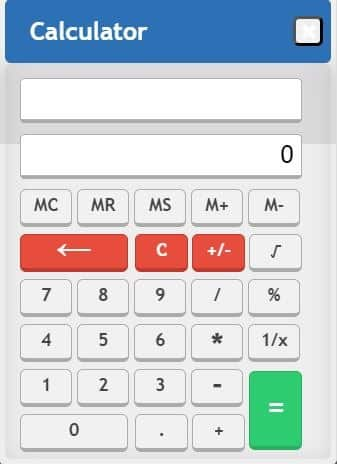
CAT provides an on-screen calculator for calculations during the examination. It can help with lengthy arithmetic in QA and DILR, but it is not a shortcut for every numerical problem.
Consider a DI question involving several percentage changes. The calculator can help verify the final value. However, calculating a simple 10% of 500 mentally is usually faster.
The following examples show when the calculator may be useful.
Calculation | Suggested approach |
Simple addition or subtraction | Calculate mentally when possible |
Basic multiplication | Use mental calculation for easy values |
Long decimal calculations | Use the calculator |
Multiple percentage changes | Use it to verify the result |
DI table calculations | Use it for lengthy arithmetic |
Complex division | Use it when mental calculation is time-consuming |
Opening the calculator for every small calculation.
Entering numbers in the wrong order.
Forgetting to clear the previous calculation.
Spending too long searching for a key.
Accepting the displayed result without checking whether the calculation was entered correctly.
Practise using the calculator during mock tests. This helps candidates become familiar with its layout before exam day.
The navigation buttons control how a candidate records an answer and moves through the paper. Knowing the difference between them is important, especially when changing a response.
The table below explains the main actions candidates may see while answering questions.
Button | Function | When to use it |
Save & Next | Saves the response and opens the next question | After answering |
Mark for Review & Next | Flags the question and moves ahead | When another check is needed |
Clear Response | Removes the selected or entered answer | When changing or removing a response |
Question Palette | Opens a selected question | When revisiting a question |
Save & Mark for Review | Saves the response and flags it, where this option is available | When an answered question needs checking |
Navigation Section is displayed as below:
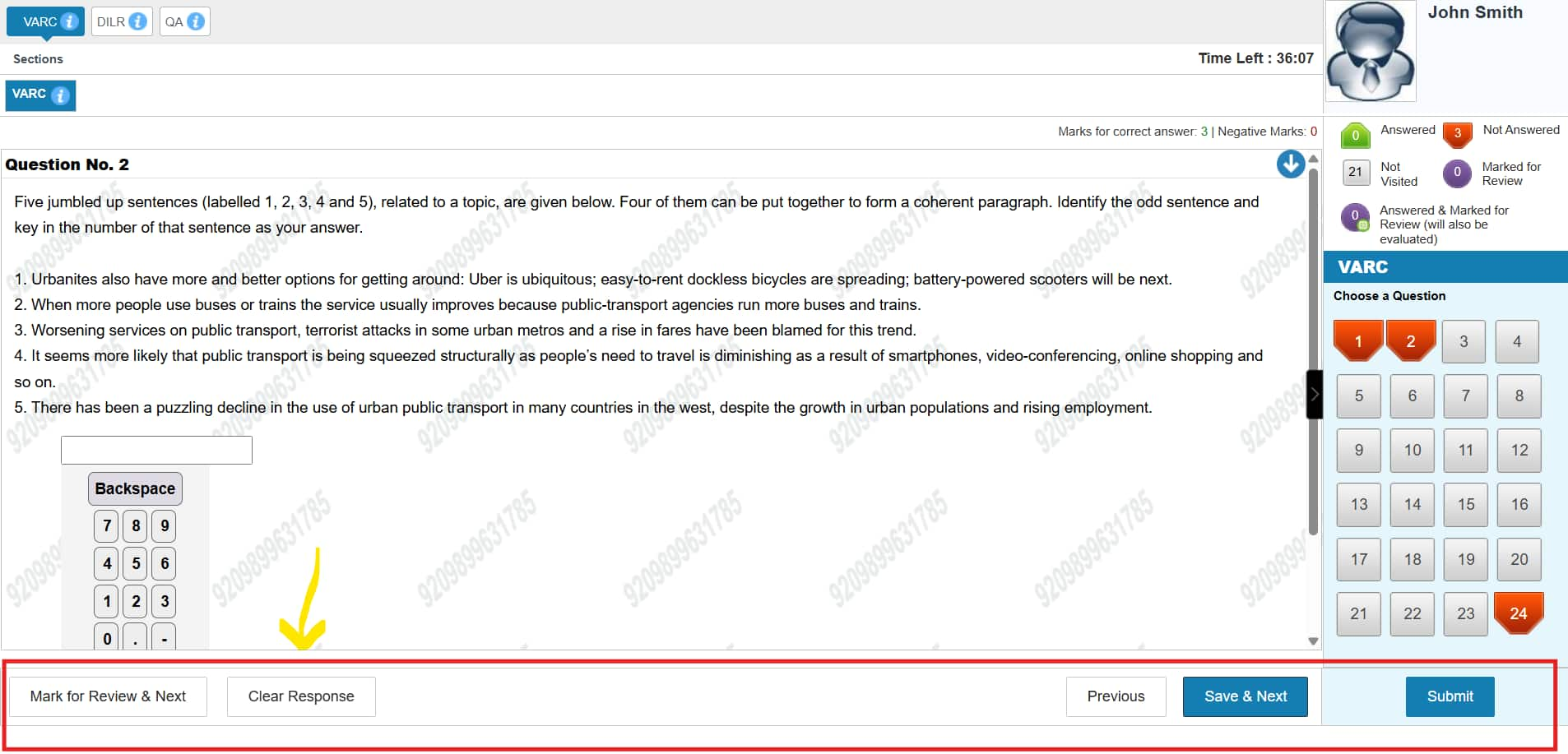
Do not confuse selecting an option with saving it. Use the relevant navigation button and confirm the question's status in the palette.
CAT has three sections: VARC, DILR and QA. Under the standard CAT exam pattern, each section has a separate 40-minute time limit.
Candidates cannot transfer unused time from one section to another. Once a section ends, it is locked and cannot be reopened.
For example, if a candidate finishes VARC with three minutes remaining, those minutes cannot be added to DILR. The next section follows its own timer.
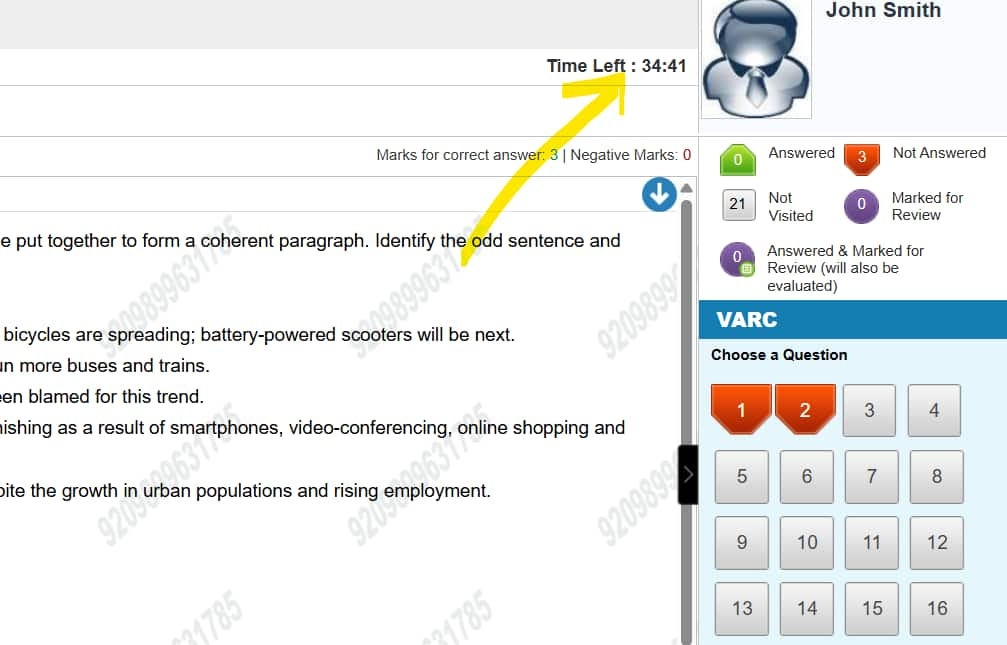
Use the final few minutes of each section to check saved responses and revisit selected questions. Do not leave this review until the section has ended.
Reading about the controls is useful, but practising them is more effective. The official CAT 2026 mock test allows candidates to become familiar with the computer-based exam environment.
Try these tasks while attempting the mock test:
Open questions using the question palette.
Select an MCQ option and save the response.
Enter a TITA answer using the virtual keypad.
Mark a question for review and check its status.
Change a saved response.
Clear an answer and enter it again.
Open and use the on-screen calculator.
Watch the section timer while moving between questions.
The official mock test is available through the CAT website. Follow the instructions displayed in the mock, as they are the best reference for the interface used in the examination.
Small navigation errors can create unnecessary confusion. The following mistakes are worth avoiding during practice and on exam day.
Common mistake | Better approach |
Moving to another question without saving | Use the appropriate save button |
Treating every review flag as an unanswered question | Check the palette status |
Marking too many questions for review | Flag only questions worth revisiting |
Entering a TITA answer without checking it | Verify the value before saving |
Using the calculator for simple calculations | Calculate easy values mentally |
Assuming unused time can be carried forward | Manage each section separately |
Trying to reopen a completed section | Finish the review before the timer ends |
Frequently Asked Questions (FAQs)
Yes. Candidates can return to the question through the question palette and change the response while the section is active.
The question is flagged so that it can be checked later. If an answer has already been saved, it remains eligible for evaluation.
Yes. It uses different status indicators to show questions that are not visited, not answered, answered, marked for review, or answered and marked for review.
Yes. CAT provides an on-screen calculator. Candidates can practise using it through the official mock test.

On Question asked by student community
Hi Khushdeep
Several apps and online platforms are available for CAT (Common Admission Test) preparation. Students can choose a platform based on their preparation needs, such as video lectures, practice questions, mock tests, and performance analysis.
Hello, for AP NEET PG Category C seats, NRI documents are generally required if you are applying under the NRI quota, and eligibility depends on the applicable counselling rules. The fee payment currency and procedure should be confirmed from the current Dr. NTRUHS notification at its official website drntr.uhsap.in.
Hello, CAT aur B-school entrance exams ke baare mein aap exam dates, eligibility, registration, exam pattern, syllabus, colleges ya admission process ki information dekh sakte hain. Aapki requirement ke according relevant details yahan mil sakti hain: https://bschool.careers360.com/exams
You can download the latest CAT syllabus from here:
Hey there,
For a B.Sc. with Chemistry, Botany and Zoology (CBZ), if the CAT application asks separately for:
If the Discipline dropdown has a more specific option such as “Biological Sciences,” “Life Sciences,” or “Zoology/Botany,”
Directions for question:
The bar-graph given below shows the foreign exchange reserves of Nepal (in million Rupees) from 2014 to 2021. Answer the following questions based on the graph :

Question:
What was the percentage increase (rounded to the nearest integer, if deemed necessary) in the foreign exchange reserves in

Globally Recognized by AACSB (US) & AMBA (UK) | 18 LPA Avg. CTC for PGPM 2026 | Last Date to Apply: 26th November
Last Date to Apply : 27th Nov'26 | Merit-Based Scholarship | 100% Tuition Fee Waiver | AACSB, AMBA, NBA & SAQS Accredited | H-CTC 35 LPA | Average CTC 16.07 LPA
Applications Closing Soon! | 75+ years of legacy | #1 Entrance Test | 100+ Test Cities | 250+ B-Schools accept XAT Score
Gateway to IBS Hyderabad & 8 other IBS campuses | Scholarships worth 10 CR
Highest Package 29.30 LPA | 230+ Recruiters | AACSB Accredited | Ranked 51 in Asia by QS International | Last Date to Apply: 7th December
Round 01 Application Deadline: 30th November 2026 | Highest Salary: INR 40 LPA | Average Salary: INR 14.01 LPA